
You don’t always have your computer nearby when an idea for an anime illustration strikes. Maybe you have a character concept in your head during your commute, a reference image already saved on your phone, or a scene you want to try before you forget it.
An anime AI app comes in handy here. But generating one image from your phone is only part of the story. If you want to try another model, add a LoRA or reference, continue developing an image, and find your previous work later, the app needs to support the whole process.
So, what can you realistically create and manage from a phone?
I’ll put PixAI’s mobile app through a complete anime creation workflow to find out. We’ll start with a first generation, switch models, add character control, continue the artwork, and then see how easy it is to find the finished work again.
What makes a good anime AI app?
A good anime AI app needs to support more than the first generation.
Once you have an image, you may want to try another model, bring in a character reference, make a change, or return to something you created earlier. On a phone, each of those steps needs to fit into a smaller workspace without making the workflow feel cumbersome.
Here are the main things to look at when deciding whether an app can handle your anime creation workflow.
Fast, practical image generation
On a mobile phone, the first step should be straightforward: enter your prompt, adjust the important settings, and start generating without fighting the interface. The result still matters, of course, so look at both the mobile experience and the quality of the anime image it produces.
Anime-focused model choice
Different anime models can produce noticeably different styles and handle characters and prompts in different ways. A useful mobile app should make it practical to switch between models and understand what you’re choosing without turning a quick experiment into a complicated setup.
LoRA and character control
LoRAs can give you more control over a character or visual style than a text prompt alone. If you are an anime creator working with recurring characters, specific designs, or particular styles, the useful question is whether that extra control is practical to use from a phone.
Reference images
Your phone is likely already where you keep character sheets, sketches, screenshots, and other visual references. An AI image generator app becomes much more useful when you can bring those images directly into the creation workflow and use them to guide the result.
Editing and iteration
The first generation is usually just the starting point. You may want to change an expression, alter the background, or continue developing the same image. The app should give you a practical way to keep working from an existing result instead of making you start from scratch each time.
Artwork management
Once you’ve created more than a handful of images, finding them again becomes part of the workflow. Look for a clear creation history or library where you can reopen previous artwork and continue working with it.
Hands-on: Can you create anime art entirely on PixAI mobile?
Now let’s take the workflow out of theory and see how it holds up on a phone. We’ll use the PixAI mobile app and start with a single anime illustration, then build on that result through the rest of the session.
Step 1: Generate the first image
Start with a complete anime illustration rather than a quick test prompt. Give the app enough information to establish the character, clothing, pose, setting, lighting, and overall composition.
Here’s an example we can use:
Anime illustration of a young female storm chaser with short black hair and a red headband, wearing a yellow weatherproof jacket, dark cargo pants, and sturdy boots. She stands on an open grassy hill, holding a handheld weather monitor in one hand and looking toward a large thunderstorm in the distance. Dark storm clouds fill the background, with wind moving her jacket and hair. Late afternoon light breaks through the clouds, creating dramatic rays across the landscape. Three-quarter view, medium full-body shot, slightly low camera angle, character positioned in the foreground with the storm clearly visible behind her, cinematic composition, detailed anime style.
For this test, pay attention to the process as much as the result. How easy is it to enter and adjust the prompt? Are the generation settings clear on a smaller screen? Once you start generating, does the interface give you enough information to know what you’re doing?
Here’s what the generation process looks like in PixAI’s mobile app.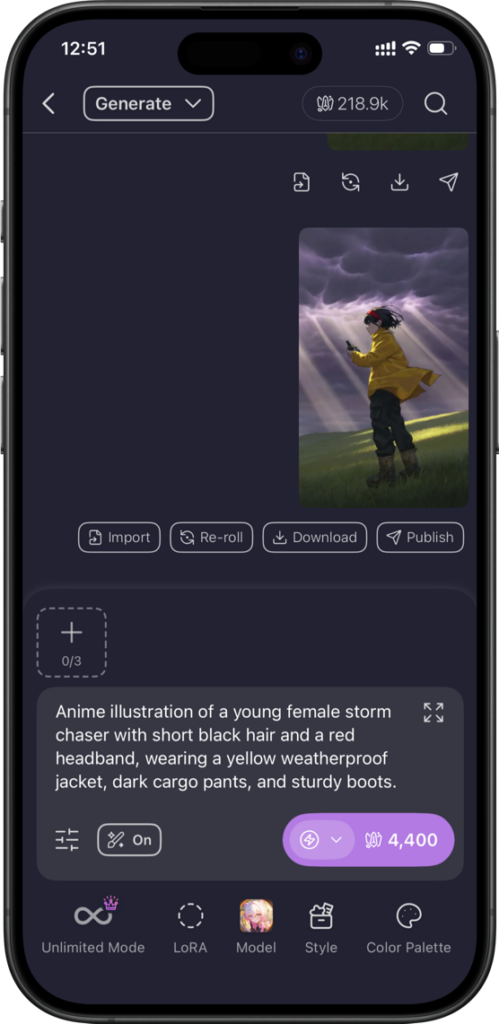
After that, look at the finished image. Even when using a mobile workflow, the AI anime app needs to produce an image you’d actually want to keep working with, because the next steps will build on this first result.
Here’s the image we got from our test.
Step 2: Try another model
Once you have a first result, switch to another AI anime model while keeping the same general prompt and creation goal. This gives you a useful comparison without changing several variables at once.
Pay particular attention to how easy it is to find the model selection, understand your options, and switch without losing the work you’ve already set up.
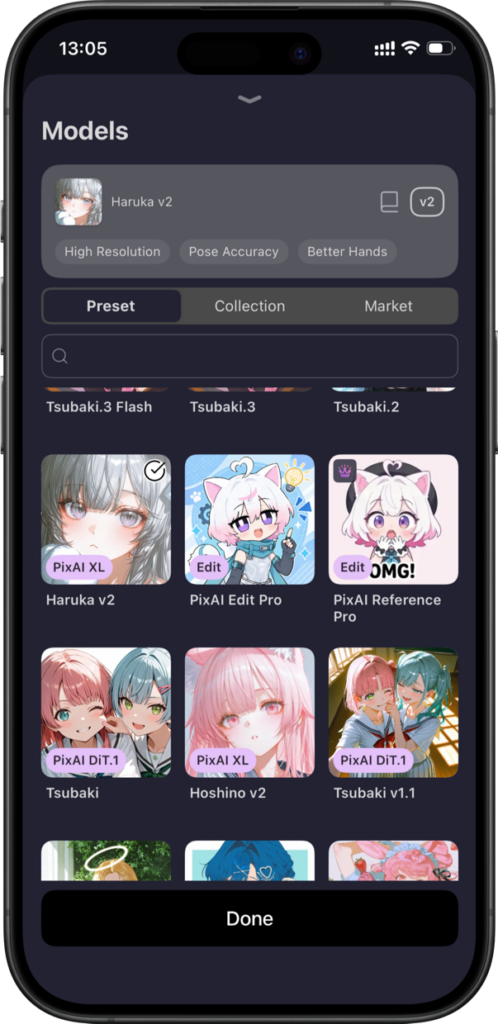
Then compare the two results. You may see differences in the character design, level of detail, lighting, or how closely the model follows the prompt.
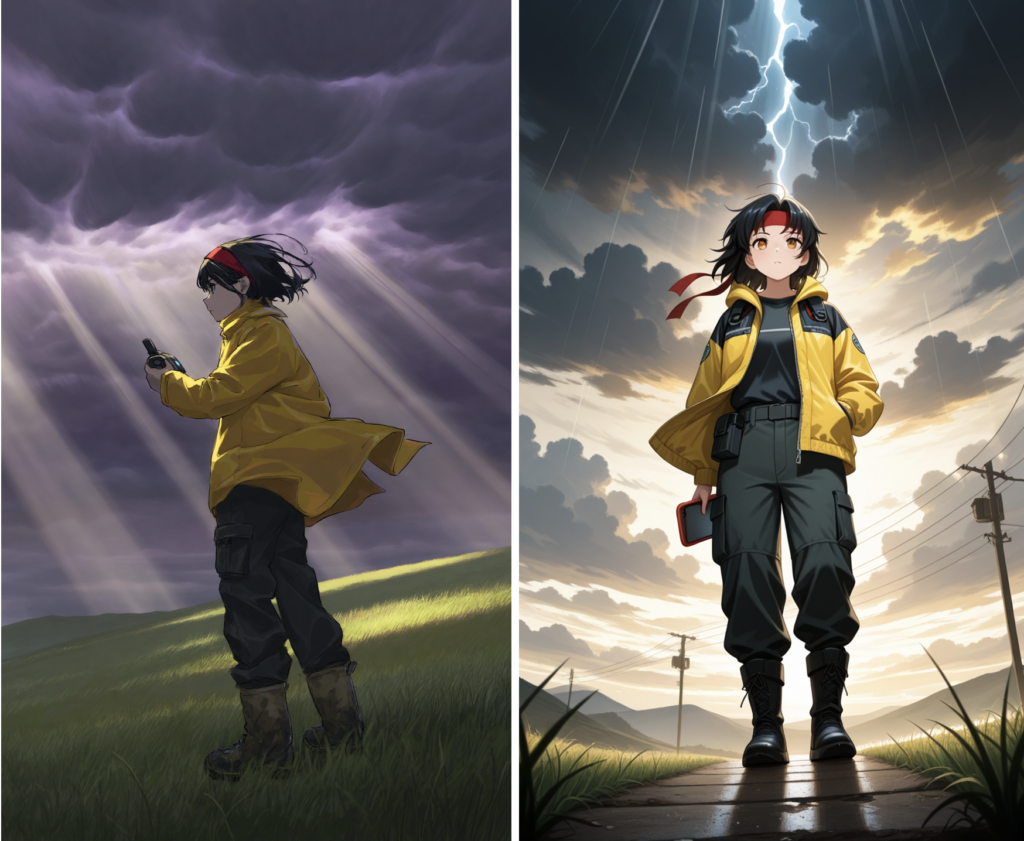
The point here isn’t checking which model is better but deciding whether experimenting with different models feels practical when you’re working from a phone.
Step 3: Add a LoRA or reference
The first two generations give you a couple of versions of the same idea. Now add another layer of control. This is where the workflow becomes more useful for anime creators who want to guide a character or visual style more closely.
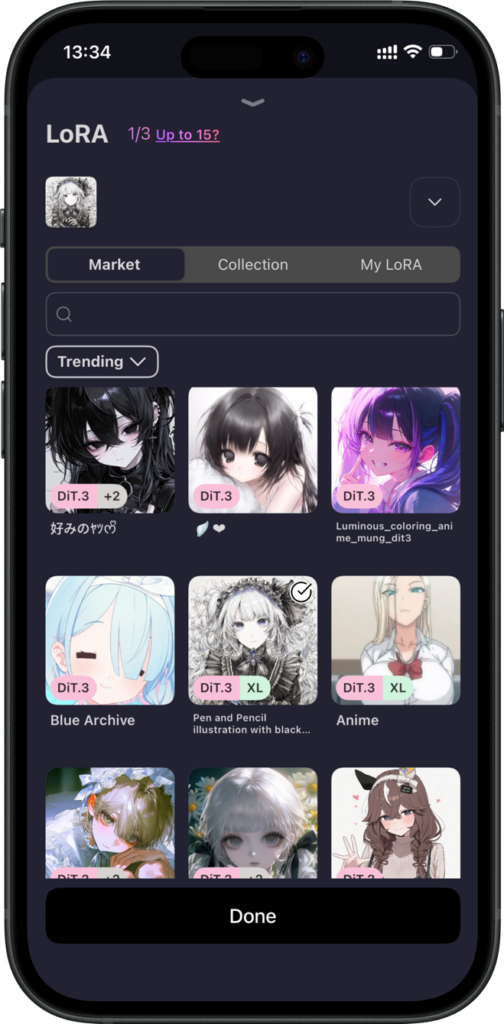
For this test, use a relevant LoRA or reference image from the mobile app. Pay attention to how easy it is to find the control, add it to the generation, and understand what effect it has on the result.
On PixAI, you just need to click the LoRA button on the image generation page and select your preferred LoRA or a custom one.
Then compare the new result with the earlier generation.
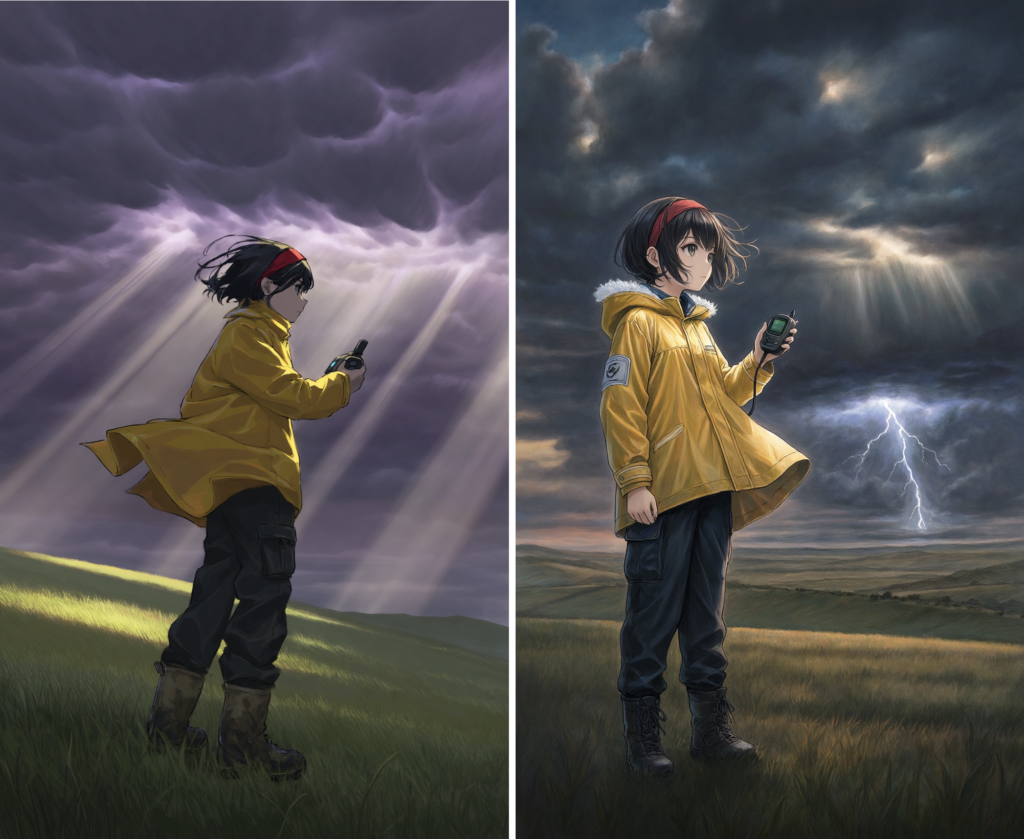
As you can see, we’ve geared the new illustration towards a new design. But how easily can you use such a LoRA on a particular AI anime app?
Step 4: Continue the image
Now, you need to test whether you can take the result you’ve already created and keep working from it. Make one meaningful change, such as adjusting the character’s expression, placing the same character in a different setting, or even generating a video.
The goal is to see what happens after the first generation. Can you move from the finished image to the next version without rebuilding everything from scratch? On mobile, that transition matters because a useful creation app should let you develop an idea across several steps rather than treating every generation as a separate task.
Let’s try that in PixAI using our image to create a video. When you click on the image, the PixAI mobile app offers an Animate option you can use to turn the image into a short video.
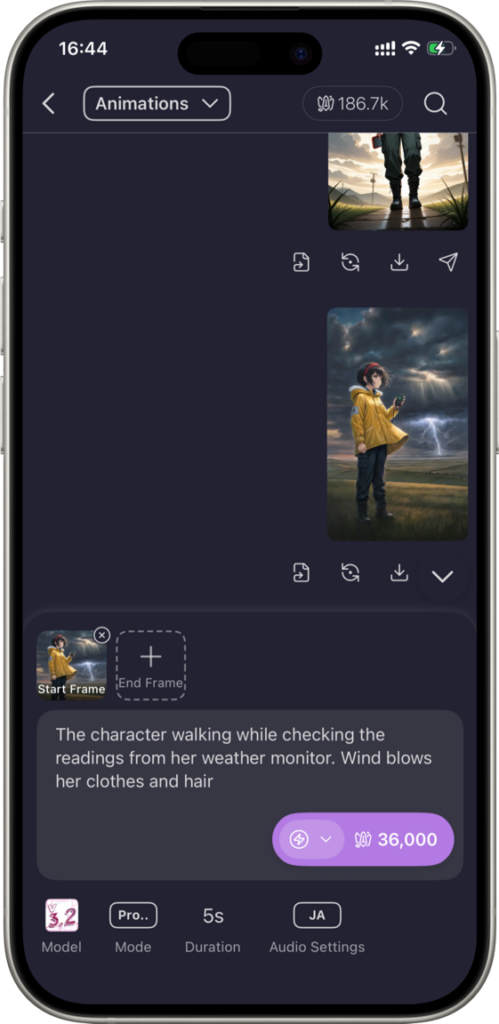
When doing this test, focus on the workflow itself. How quickly can you move from the original result to the next iteration, and does the new image preserve enough of what worked in the first one?
Step 5: Find the artwork again
After you’ve finished the generations and saved the result you want to keep, leave the image and come back to it later. Find it in the app’s history or library, open it again, and check what you can do from there.
This is a small part of the workflow, but it matters when you’re working on an ongoing project. You may have several versions of a character, a handful of scene ideas, or images you want to revisit later. Being able to find previous work without searching through your phone’s camera roll keeps those creations connected to the rest of the workflow.
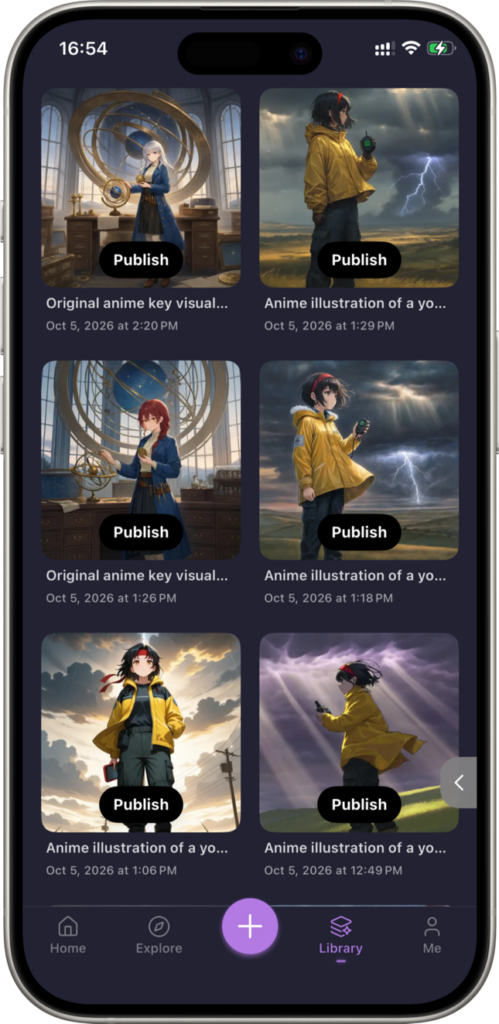
Consider how quickly you can locate the image and whether you can reopen it and continue working from the same place.
Where mobile AI creation works best
A phone changes the context in which you create. You can work with an idea while you’re away from your computer, use images already stored on your device, and keep developing a project in short sessions. The workflow we tested shows where those advantages are most useful.
Quick idea generation
Sometimes you have the idea before you have the time to sit down at your computer. A mobile anime art generator gives you a way to turn that idea into an image while it’s still fresh.
You can write the prompt, try a few variations, and save the results for a more focused session later. This works particularly well for testing character concepts, scenes, outfits, or compositions rather than trying to finish a large project in one sitting.
OC experimentation
Original characters often go through plenty of small changes before their design settles. You might want to see the same character with a different outfit, expression, setting, or pose.
Being able to generate those variations from your phone gives you a useful way to explore the character whenever you have an idea. You can also bring a character reference from your phone’s gallery into the workflow when you need more visual guidance.
Reference-based creation
Mobile phones tend to collect exactly the kind of material you might want to use as a reference: sketches, screenshots, character designs, photos, and inspiration images.
An AI anime generator app that can work with those references lets you move directly from something you’ve saved on your phone to a new generation. That can be particularly useful when you’re developing a character or trying to establish a particular composition.
Social content
If you’re creating anime artwork for social media, your phone can also be where creation and publishing meet. You can generate an image, make another version, review your previous work, and prepare something for posting without moving the project between several devices.
This is especially useful for creators who produce smaller batches of visual content rather than working on a large illustration project at a desktop.
Casual ongoing creation
A mobile workflow also suits creators who work on ideas in short bursts. You might generate a character one day, revisit the result later, and then develop the character into another scene when you have time.
The important part is that the artwork stays connected to the creation workflow. You can return to previous generations and keep building on an idea instead of treating every session as a completely separate project.
Where desktop may still be better
Mobile can handle a lot of anime creation, but a larger screen still has advantages for longer or more involved sessions.
While mobile phone apps can cover a lot of ground in quick creation and ongoing experimentation, desktop becomes more useful as the project and workflow grow.
Who should choose an anime AI app?
An anime AI app can fit very different creative workflows. What matters is how you plan to use it.
- Casual creators: Useful for generating anime artwork whenever inspiration strikes, without committing to a desktop setup.
- OC creators: Helpful when you want to experiment with characters, outfits, expressions, and scenes from your phone.
- Social content creators: Practical for producing and reviewing images close to where you publish them.
- Creators who work across devices: Useful when you want to start an idea on your phone and continue it elsewhere.
- Creators who prefer mobile workflows: A good fit if you want generation, references, iteration, and artwork management in one place.
In these cases, the main advantage is having enough of the creative process on one device to keep an idea moving wherever you are.
Where PixAI fits
The workflow we tested with the PixAI mobile app covers the main parts of an anime creation session, from the first generation through to revisiting previous artwork. It makes PixAI suitable for different workflows.
For anime-focused creation
PixAI is particularly relevant if anime artwork is the main thing you want to create on your phone. The workflow gives you access to model choices and lets you build on an image rather than stopping at the first generation.
For character and style control
If you work with recurring characters or specific visual styles, LoRAs and references add another level of control. Being able to bring those into the mobile workflow makes the app more useful for projects that need more direction than a text prompt alone.
For ongoing creation
The ability to continue working with previous results also matters. You can generate an image, develop the idea further, and return to earlier artwork without treating each session as a completely separate project.
Overall, PixAI is particularly relevant to mobile creators who want more than one-off text-to-image generation and want models, character control, references, and iteration available within the same mobile environment.
Final thoughts
A good mobile anime AI app should give you enough control to take an idea beyond the first generation. You should be able to try different models, bring in a LoRA or reference, continue developing an image, and find your previous work again.
PixAI holds up well for this kind of workflow. The mobile experience lets you handle the main stages of anime creation without needing to move to a desktop after every generation. If your projects involve recurring characters, visual references, or regular experimentation, that makes the app particularly useful.